Skip to content

Changelog

The latest features, product improvements and updates in neuland.ai HUB.

    1. Latest

      Continuous releases, automatic tool use & custom MCP servers

      This product update is deliberately a little shorter, because this time the most important change is not a feature but a rhythm: we are moving from fixed release cycles to continuous delivery. On top of that come three changes you will notice right away: the chat picks tools and connectors on its own, you can connect your own MCP servers, and permissions and roles are more fine-grained.

      Why we are moving to continuous delivery

      Until now, we released new versions on a fixed rhythm of about three weeks. That rigid model was not always ideal, especially when bug fixes or smaller improvements were ready earlier and still had to wait for the next date.

      So we are switching to continuous delivery: going forward, we plan to ship smaller updates every one to two weeks, such as bug fixes, optimizations or minor changes to the user interface. We will of course continue to announce larger new features in advance. The same applies to fundamental changes that noticeably alter how neuland.ai HUB works.

      For our communication, this means:

      • Less often, but in more depth. Extensive product updates like this one will appear at longer intervals.
      • Regular small updates. In between, we keep you posted on the changes released each week.
      • Manual. Information that is especially important for using neuland.ai HUB also goes into the manual.
      • Notices directly in neuland.ai HUB. We show important notices as an information overlay so they reach all users.

      This lets us ship improvements faster while making sure you stay fully informed about relevant changes.

      Tools and connectors are now used automatically

      A first change under this new model concerns how tools are used in the chat. Until now, you had to select or activate many tools manually before sending a message. That was cumbersome, and in the worst case the selection was simply forgotten.

      This extra step is no longer necessary: based on what you ask, the chat recognizes which available tool is needed and uses it automatically.

      Code & Data Analyst
      You no longer need to activate it separately. If a task requires, for example, analyzing a file, running a calculation, creating a chart or generating a document, the chat uses the tool automatically.

      Connectors
      You also no longer need to select connections to other systems manually. Just phrase your request as usual, for example:

      • “Search my emails for …”
      • “Create a calendar entry for …”
      • “Search HubSpot for the following customer …”
      • “Post an update in the Teams channel …”

      As before, the connector must be enabled by your administrator and you must have connected the integration to your user account. The difference: you no longer have to remember to pick the right tool before your request.

      Web search remains a deliberate choice

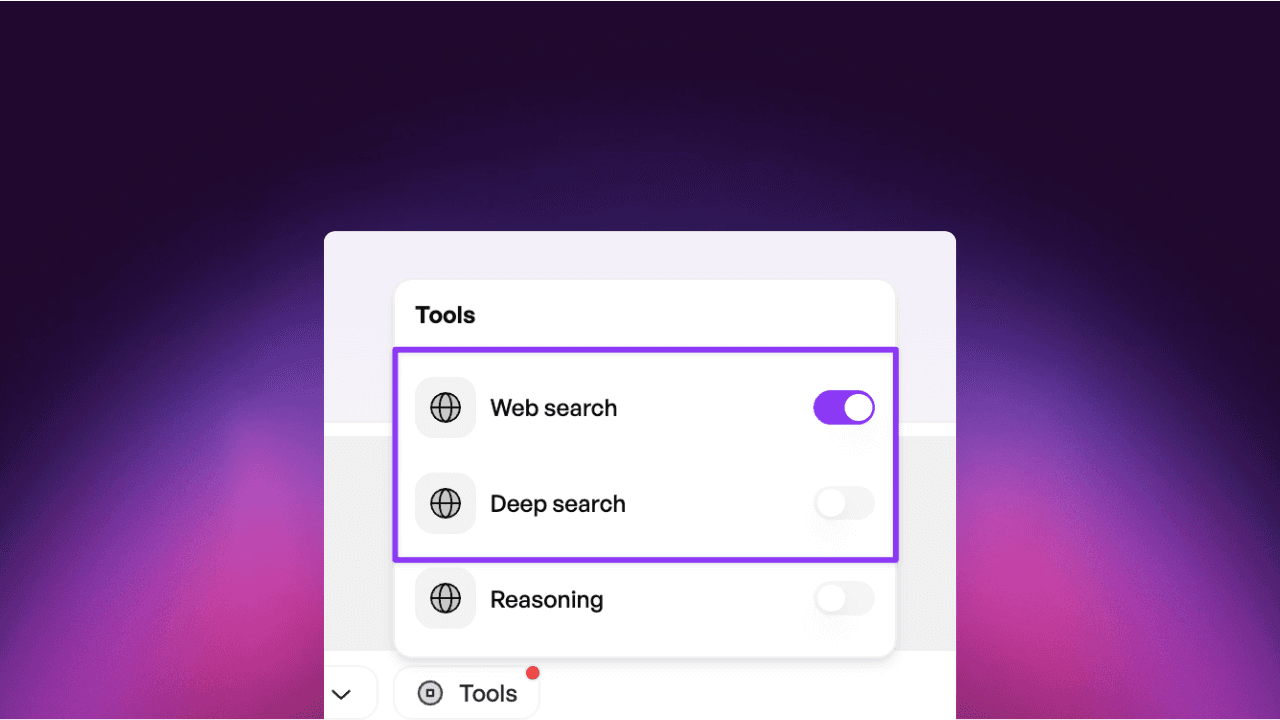
      One exception is web search. Even if it is enabled for your organization, you still need to switch it on deliberately for each request: click the plus sign below the input field and then select “Web Search”.

      This ensures that information from the public internet is only included in an answer when you explicitly want it. For all other available tools and connected systems: just describe in the chat what you want to get done, and neuland.ai HUB automatically picks the right tool.
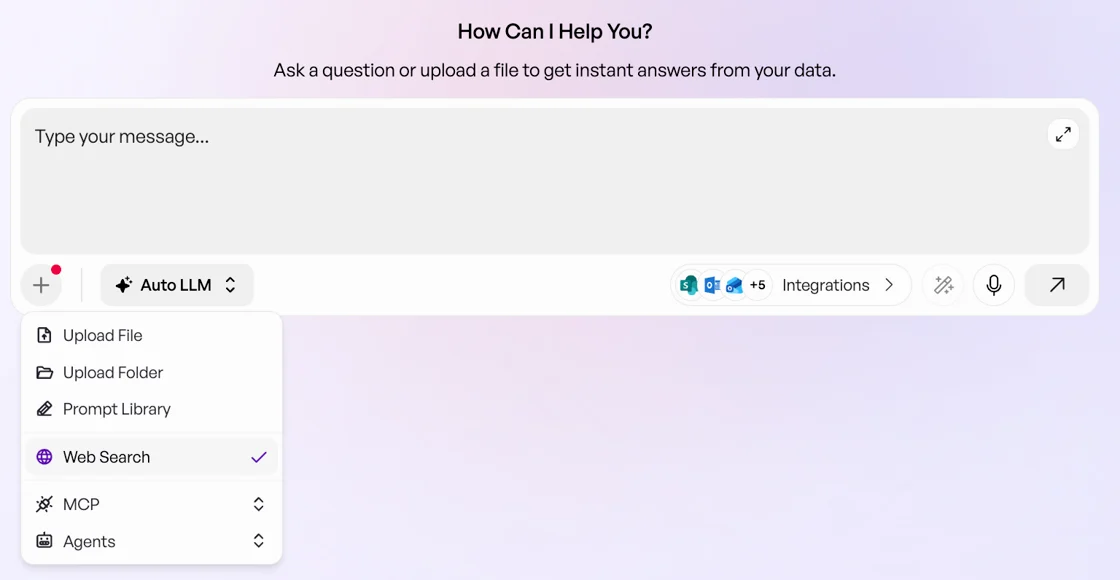
      Chat input field in neuland.ai HUB with the plus menu open: Upload File, Upload Folder, Prompt Library, Web Search, MCP and Agents

      Connect your own MCP servers

      Not every internal tool deserves its own connector, and you still want to use it in the chat. That is exactly what MCP is for: with the new update, you can connect your own MCP-compatible servers to neuland.ai HUB. MCP stands for Model Context Protocol and lets you use custom internal tools or third-party services directly in the chat, without having to build a dedicated neuland.ai HUB connector.

      How to connect
      If the feature has been enabled for you, set up the server under Settings. You need a server URL or a JSON configuration, along with MCP server URL, Name (optional) and Authorization header (optional).

      How to call the tool
      In the chat, you find it under plus sign → MCP. There you can switch it on or off for the current conversation.

      Important: connecting an MCP-compatible server is currently possible per individual (enabled) user. A connection available to the entire organization cannot be set up yet, so every authorized user has to configure the settings themselves. In the future, administrators will also be able to do this for the entire organization.

      MCP is disabled by default and must first be enabled by an administrator in the settings. With this update, it can be switched on or off under Feature Flags in the admin settings, alongside Orchestration/automation, the Marketplace and Auto LLM routing.
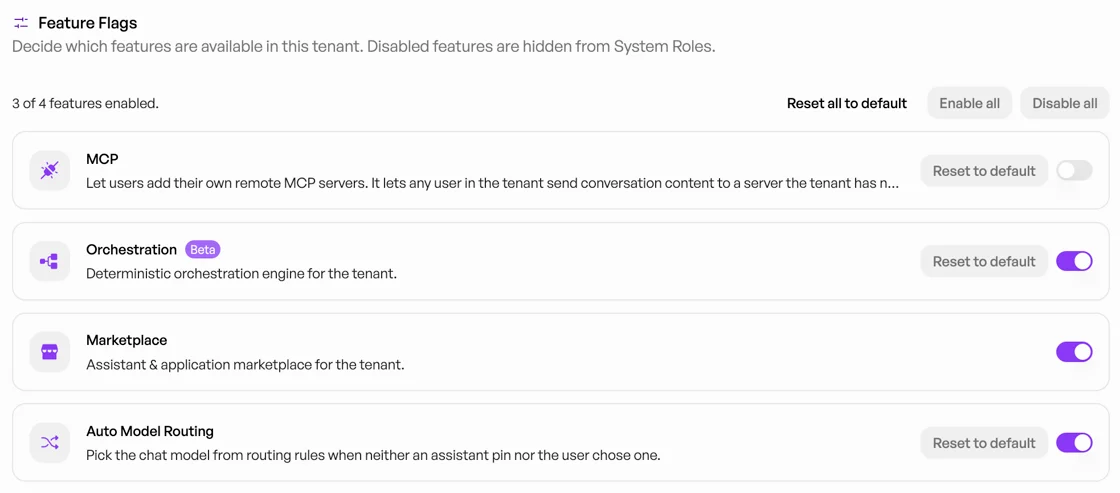
      Feature Flags in the neuland.ai HUB admin settings with MCP, Orchestration, Marketplace and Auto Model Routing

      Before adding an MCP server, check in particular:

      • Who operates the server?
      • Which tools and actions does it provide?
      • Which data is transferred during use?
      • Which authentication is required?
      • Does the use comply with internal security, data protection and compliance requirements?

      The connected MCP server does not automatically get access to all data in neuland.ai HUB. However, content passed to an MCP tool in a specific request may be transferred to the external server and processed there.

      Our recommendation: enable MCP at first only for clearly defined use cases and for users who have been briefed accordingly. Review and document every server before it goes into everyday use.

      Permissions and roles: finer control over who can do what

      With the changes to permissions and roles, administrators can define even more easily and precisely which features and resources are available to specific users or user groups. This is already possible today; with the upcoming update, you can additionally assign the use of automation (Orchestration), which must first be enabled by neuland.ai, as well as the use of the MCP interface.

      For this purpose, you can not only view the user role currently set as default but also copy it. And you can assign a new role to active users in just a few clicks.

      This lets organizations, for example:

      • make powerful or particularly costly models available only to certain groups,
      • enable technical features specifically for power users or business units,
      • restrict access to MCP to briefed users,
      • better reflect internal security and governance requirements.

      neuland.ai HUB stays flexible to use, while administrators keep control over which resources and advanced features may be used within their organization.

      For bug reports, feature requests or tool approvals, write to us any time at support@neuland.ai. We look forward to your feedback: it decides what we build next. 🙌
    1. Automated orchestration, Governance Center & Analytics

      This release brings a whole series of new features to neuland.ai HUB. The highlight: neuland.ai HUB no longer just answers, it can take over processes. With the new, optional automated orchestration (beta), you simply describe a recurring process in the chat, and neuland.ai HUB turns it into an executable workflow. On top of that come automatic model selection, an Effort slider, file attachments in emails and Teams messages, agents as tools in the chat, and three new admin areas: Analytics, Resource Access and Governance.

      Why we built automated orchestration

      The Orchestrator has been part of neuland.ai HUB for a while, but invisibly: it worked behind the scenes, and you instructed it anew with every request. So you had to describe recurring processes again every time. That is exactly what we wanted to change. With automated orchestration, we lift this function to a level you can see and control: you define a process in a chat dialog, have it displayed and then run it as often as you like, with no code, no node editor, no workflow builder. The naming may still change when the beta ends; the way it works will stay.

      How to create an orchestration

      Describe the process in the chat

      Describe in plain everyday language what should happen, for example: “Every Monday, get all open Jira issues from project HUB, summarize them and send them to me as a structured email.” Where something is unclear, neuland.ai HUB asks follow-up questions: which project, which recipient, which format.

      Save as an orchestration

      As soon as the chat delivers the results you expect, have the process behind it created as an orchestration, using the “Create Orchestration” button at the top of the chat or the corresponding command directly in the chat. Converting it into a workflow can take anywhere from a few to several minutes.

      Review the flowchart and run it again

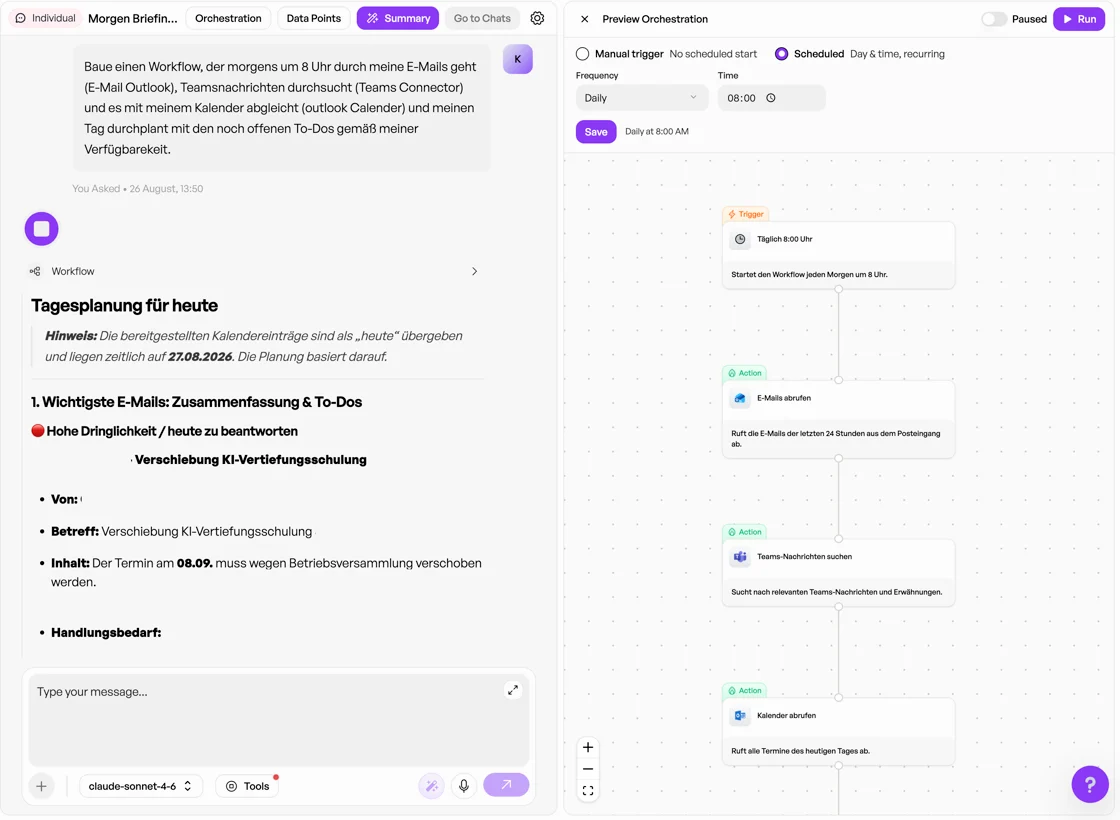
      The finished process is shown to you as a flowchart: you see every step, every condition and every tool used. The workflow stays saved and can be run again or adjusted at any time, either in the associated chat or in the Orchestration tab.

      Important for using it: you do not edit the steps directly in the diagram. You describe changes in the chat again, for example “Remove the step with the Excel export and just send the text instead”. neuland.ai HUB then rebuilds the workflow. This is by design: you should focus on the what, not on wiring up building blocks.

      Screenshot: workflow for daily planning described in the chat, shown on the right as a flow scheduled for 8:00 with emails, Teams messages and calendar

      What orchestration can do

      • Every tool the chat can use. Whatever your users reach today in the chat via a connector is also available to orchestration, including Jira, Confluence, HubSpot, Outlook (mail & calendar), Microsoft Teams, Fireflies and SQL databases, as well as the AI tools of neuland.ai HUB such as Code & Data Analyst, summaries and text drafts.
      • Not just linear chains. Depending on how you describe the process, you get simple sequences or workflows with conditions (“if there is no result, then …”) and loops, such as “go through each contact in the list one by one”.
      • Deterministic execution. The steps run as a fixed process through the respective interfaces. Results vary only where AI is deliberately involved: writing texts, summarizing content.
      • Management in one place. In the orchestration view, you see all saved workflows and can view, adjust, start manually and delete them. During each run, you see live which step neuland.ai HUB is working on.

      Beta: what you should know

      We are deliberately starting as a beta. Automated orchestration is a big step for the platform, and it is new. In the first weeks, errors may occur, especially with very complex processes, when several systems are used in one step, or when sending to multiple recipients. Manually refining individual branches of very complex workflows is not yet possible at launch; for now, the only option is to describe them again in the chat.

      Orchestration is enabled per organization and is not available by default. If you want to get started, please coordinate with your organization and contact support@neuland.ai. The same address also reaches us with any bug report, and each one helps us harden orchestration quickly.

      Automatic model selection (beta) and Effort

      Which language model is the right one? And how long should it think? You no longer have to ask yourself these two questions with every message in neuland.ai HUB. Both switches below the input field are now set to Auto by default: neuland.ai HUB decides on its own what fits each request.

      Automatic model selection

      When model selection is set to Auto, each individual message is routed to a suitable language model based on its complexity. A short follow-up question goes to a fast model, a demanding analysis to a more powerful one, all within one ongoing conversation. So you don’t need to predict in advance where a conversation is heading. Only models available to you are used: whatever your administrator has not enabled via Resource Access, automatic selection won’t use either. You stay in control: as usual, you can set a specific model manually at any time via the model selector, for example if you want to compare results or deliberately prefer a particular model for a task.

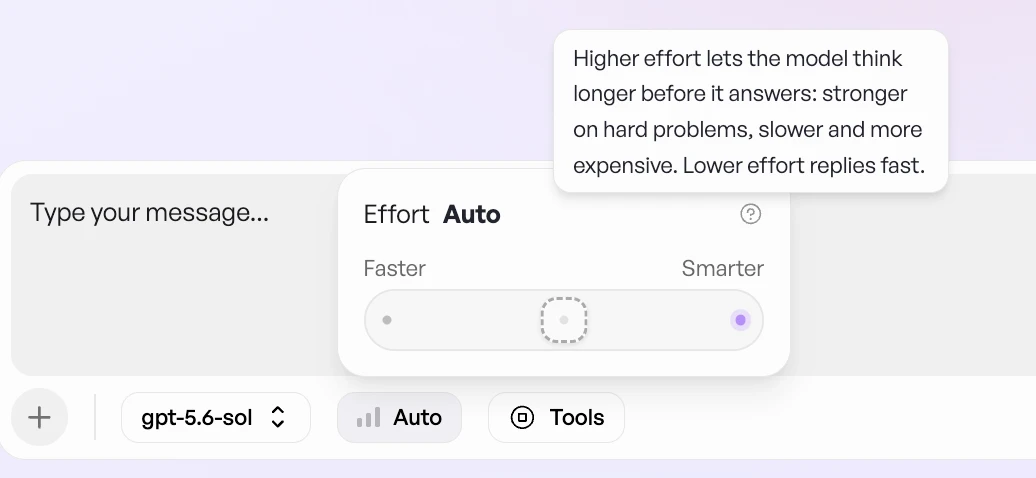
      Screenshot: effort slider in the chat input between Faster and Smarter, set to Auto

      Effort: how long the model thinks

      Modern language models can take more or less time to “think” before answering. More thinking time produces better results on tricky tasks, but costs time and compute. That is why you now find the Effort switch next to the model selector. One click opens a slider between “Faster” and “Smarter”; the setting applies immediately to your next message. Move it left for short, clear tasks such as rephrasing, translations or quick follow-up questions: the answer comes noticeably faster. Move it right for truly complex tasks such as multi-step analyses, demanding calculations, tricky code or problems with many constraints: longer response times are normal here.

      Our recommendation: the default sits in the middle and is just right for typical tasks: summarizing, writing, researching, questions about documents. In the vast majority of cases, you don’t need to change anything. Only turn the slider up if the result of the default setting did not convince you. Working permanently on “Smarter” slows down simple requests unnecessarily and increases costs without improving the result.

      Send files directly from the chat

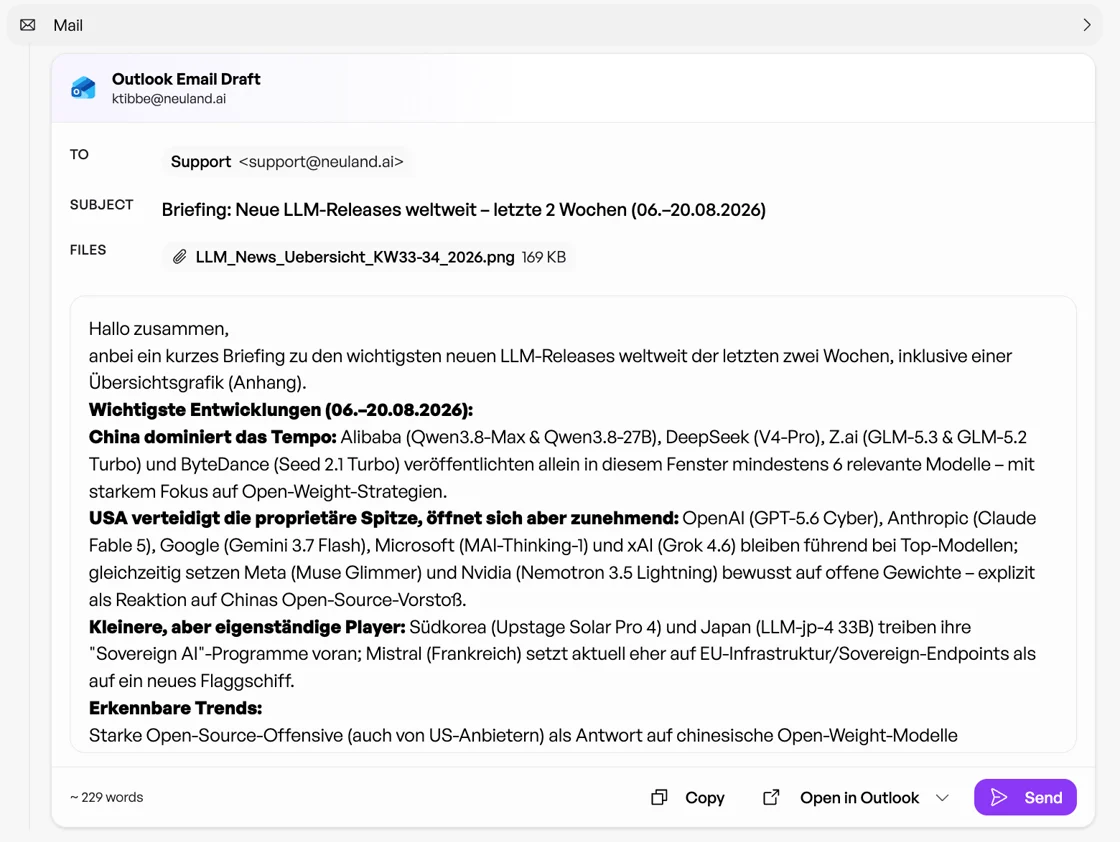
      Until now, neuland.ai HUB could write messages and emails via the connectors, but not attach files. That changes: attachments are now supported, initially for Outlook (email) and Microsoft Teams. Upload a file in the chat as usual or have one generated, for example an Excel analysis by the Code & Data Analyst, and ask neuland.ai HUB to send it: “Email this analysis to the team.” Before sending, you see the finished draft including the attachment and approve it; the human-in-the-loop principle applies here too.

      Good to know: the default limits are typically 20 MB per file, 25 MB per send and a maximum of 10 files; your organization may differ. For technical reasons, Microsoft Teams provides the file via OneDrive/SharePoint and links it in the message. And on the first send, your users may need to confirm permissions with Microsoft again. Also new: emails now keep the displayed formatting when they are opened as a draft via the corresponding option in the email client.

      Screenshot: Outlook email draft in the HUB with recipient, subject, attachment and formatted text

      Agents as tools in the chat

      Your agents are no longer just separate chats: they can now be called as a tool within an ongoing conversation. So you keep working in the regular chat and bring in the right specialist when you need it, instead of switching conversations. A typical example: you are researching a contracting party and, in the middle of the chat, have your NDA review agent assess the attached document; result and context stay in one place.

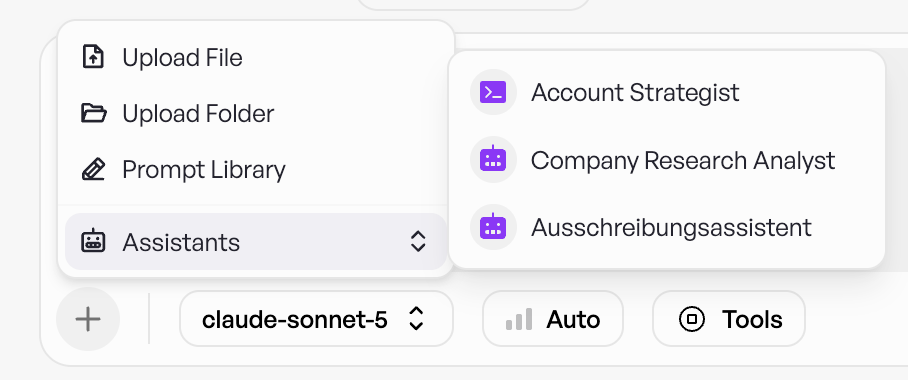
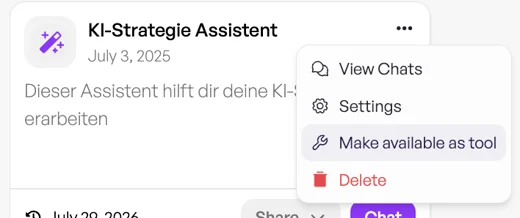
      How to enable it: open the Agents area, find the card of the agent you want, click the three dots (…) in the top right corner and select “Make available as tool”. Once provisioned, the agent is available in the chat under the plus sign for the users it is shared with. Visibility follows the agent’s existing sharing: exactly the users you have already shared it with will see it; anyone without access to the agent won’t be offered it as a tool either. So you don’t have to maintain permissions twice.

      This is especially useful for agents with a clearly defined task: reviewing, assessing, rephrasing, researching. Very broad all-rounders benefit less, because the same capabilities are available in the chat anyway.

      Screenshot: assistant menu with the option Make available as toolScreenshot: selecting assistants as a tool in the chat plus menu

      Usage & costs at a glance: the new Analytics dashboard

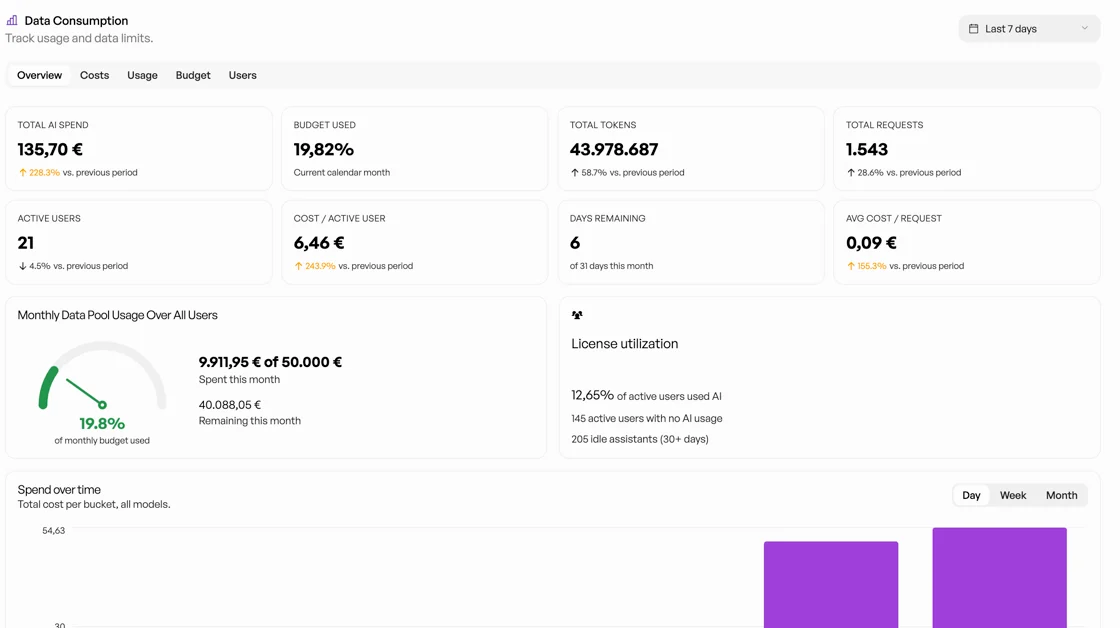
      Usage reporting in neuland.ai HUB has been significantly expanded. Instead of a single total, administrators get a detailed breakdown: usage and costs by level (tenant, user, group, agent and API key), plus file and storage statistics on uploaded content. The views are role-dependent: who may see which report depends on their permissions. Also new is a usage forecast that projects your current monthly trend so you can take action early. You find the reports under Settings → Consumption.

      Screenshot: Data Consumption analytics dashboard with AI spend, budget, tokens, requests and license utilization

      Resource Access: control who may use which models, tools and connectors

      Until now, whatever was enabled in neuland.ai HUB was available to all users. With Resource Access, administrators can now restrict access specifically, to individual groups or individual people. You find the area in the administrator settings under Roles. By default, everything is initially available to everyone: if you don’t want any restriction, you don’t need to do anything, and neuland.ai HUB behaves as before. The restriction only applies once you assign specific groups or users to a resource.

      Governance: central policies for your tenant

      Until now, retention rules, AI guidelines and guardrails were spread across different places. In the new Governance area, you manage these policies together in one place, valid for the entire organization. You find it under Settings → Governance; changes only take effect once you click “Save”.

      • Document retention. Define after how many days unassigned documents are deleted automatically; the default is 90 days. Documents assigned to a chat, a project or a knowledge base are not affected; only orphaned uploads are. This keeps your data lean and supports your deletion policies.
      • Email notifications. You decide what administrators are notified about automatically: budget alert emails as soon as a budget threshold is exceeded, and soft limit warning emails as soon as a user reaches the soft spending limit.
      • Instruction Prompt. Store an overarching instruction for how the AI should respond in your organization, such as tone (friendly or formal), a professional role or a preferred language. This instruction applies tenant-wide and no longer needs to be repeated in every single agent.
      • Guardrails. Guardrails can be enabled and disabled centrally. With the inbound guardrails, you describe in your own words how the AI should handle incoming requests, for example which topics it should reject or flag with a notice. Because the rules are written in natural language, you can tailor them exactly to your compliance requirements.

      Our recommendation: test new guardrail rules first with typical phrasing from your everyday work before enabling them organization-wide. This ensures that legitimate requests are not blocked by mistake.

      Improvements

      Alongside the new features, this sprint, including an interim hotfix, brought more than 30 bug fixes. The most important ones at a glance:

      • Stable chat. Fixed an issue where the chat got stuck with an endless loading indicator in certain situations, aborted with sporadic error messages or stopped responding entirely after long load times. The “Continue” button for very long, truncated answers also works reliably again.
      • More accurate guardrails. Guardrails used to block conversations too often and with unclear reasons. Detection and the message text have been reworked.
      • Display fixes. Minor issues with code blocks, table rendering and voice input are fixed.
      • More reliable agents. Agents restarted when they hit the output limit or hung indefinitely without an error message; both are resolved. Agent settings also show the model actually in use again.
      • Automatic model fallback. If a model fails, a fallback model now takes over reliably, and you are notified.
      • Code & Data Analyst. The tool no longer appends raw output to its summaries.
      • Sign-in. Several sign-in issues are fixed, such as “Email not found” despite a valid account, failed logins for external addresses and faulty SSO configurations for individual tenants.
      • Connectors. Confluence and Fireflies connect without problems again, and authorization errors with individual integrations are a thing of the past.

      For bug reports, feature requests or tool approvals, write to us any time at support@neuland.ai. We look forward to your feedback: it decides what we build next. 🙌
    1. SQL connector & web search safety

      This release brings two major new features to neuland.ai HUB: a brand-new SQL connector that lets you query your databases directly from the AI Chat, and a built-in safety banner that keeps your team informed whenever web search is active.

      Why we built the SQL connector

      Your data doesn’t only live in documents and wikis; much of your most valuable business information sits in databases. Until now, getting answers from a database meant writing queries yourself or switching to another tool. We wanted to change that. With the new SQL connector, you simply ask a question in natural language and let the AI do the rest, without ever leaving the chat.

      How to use the SQL connector

      Connect your database
      Go to Settings → Integrations and look for the new SQL connector card. Enter your database connection string, and you’re connected. A clear status indicator shows whether the connection is active. You can update or disconnect it at any time.

      Natural language queries
      Once connected, just activate the SQL tool in your chat and ask your question naturally, for example: “What were the best-selling products last quarter?” or “Show me all open orders for customer X.” The AI translates your question into a safe, read-only query and returns the results directly in the chat.

      Security by design

      The SQL connector was built with security as its top principle. It runs read-only queries exclusively; your data can never be changed through the chat. So you can safely give your team access to data-driven answers without worrying about unintended changes.

      Web search safety banner

      We have also introduced a warning banner that cannot be dismissed and appears automatically as soon as web search or Deep Search is active in a chat. The banner reminds users not to enter confidential information, such as customer names or account numbers, that could be passed on to external search services. The banner appears and disappears in real time depending on whether the tool is switched on or off, so users are always informed at the right moment. Tenant admins can enable or disable this banner globally in the tenant settings panel, giving them full control over when and how the notice is shown.

      Both features are still in an early version and we are actively working on them. We look forward to your feedback: it decides what we build next. 🙌
      Improvements

      • Chat UI state fixes: Fixed an issue where the loading animation in the chat title kept spinning after a complete answer and the auto-generated chat name in the overview did not update without manually reloading the page. Both now update immediately and reliably.
      • Confluence integration fixed: A persistent error that prevented the Confluence tool from working correctly has been fixed. Users no longer need to switch models or reconnect the integration to get results.
      • SharePoint for multi-tenant environments: Fixed an issue where users from a different organizational tenant could not connect the SharePoint integration even though SSO worked fine. The connector now supports these cross-tenant scenarios correctly.
      • Deleting chats works again: Fixed a long-standing bug that caused an error when deleting chats with stored usage history. Chats can now be deleted smoothly and without unexpected errors.
      • Stability with long outputs: Fixed an issue where generating very long AI answers caused the chat to freeze silently mid-sentence. The platform now handles output limits much more robustly.
      • Code & Data Analyst improvements: Fixed a compatibility issue that caused the Code & Data Analyst tool not to work with certain AI models. The tool now works reliably with all supported models. We also fixed an encoding error that displayed exported files incorrectly, and improved the placement of generated images within the answer: they now appear exactly where the AI intended, no longer all at the beginning.
      • Central integration settings for admins: Admins and super admins can now configure integrations centrally for the entire tenant, including endpoint URLs, API keys and other parameters, directly from the integrations page in the settings, without every user having to set them up themselves.
      • Group management: Administrators can now create and manage user groups directly in neuland.ai HUB, without Active Directory. Groups can also be synced automatically from your existing identity provider, and agents can be assigned to groups so the right people always see the right tools.
      • Mistral models added: Mistral models are now available as an option when choosing the AI model in the chat and in agents.
      • Performance improvements: Fixed a platform-wide performance issue that caused long load times in projects, the prompt library and agents for some users. The platform should feel noticeably faster and more reliable.
      • OpenDesk / Nextcloud connector: We added support for Nextcloud in the openDesk Sovereign Workplace Suite, a popular solution in the German public sector. Users can now connect their Nextcloud files and access them directly from neuland.ai HUB, in a GDPR-compliant, data-sovereign environment.
    1. v1.3.2

      June update: steady progress behind the scenes

      We are continuously refining and strengthening the neuland.ai HUB platform. This release focused on internal quality improvements so that everything runs smoothly for you.

      Sometimes the most valuable work happens quietly in the background. This update is exactly that kind: our team worked hard on improving stability, performance and the foundations that power everything you do in neuland.ai HUB. Even though there is nothing spectacular to show this time, releases like this are the foundation for larger features to land reliably when they are ready.

      We have exciting new features in the pipeline and can’t wait to share them with you soon. Stay tuned: the next update will have a lot more to offer.

      As always, we love hearing from you: your feedback decides what we build next. We look forward to your thoughts.

    1. v1.3.1

      Image generation, Magic Wand & voice input

      Generate images, write better prompts and talk to neuland.ai HUB

      This release brings three important new features to neuland.ai HUB: AI-powered image generation directly in the chat, a “Magic Wand” that instantly improves your prompts, and voice input that lets you interact hands-free. Alongside these main features, we have introduced a series of usability improvements that make the platform faster, more intuitive and more reliable in daily use.

      Why we built this

      We listened closely to how you work. You told us that constantly switching between tools, jumping into an image editor here, rephrasing an unclear prompt there, or laboriously typing when your hands are busy, interrupts your flow. We want neuland.ai HUB to be the place where you get more done without having to leave it. That is why this release focused on removing these friction points and giving you real new creative and productive options, all within the chat experience you already know.

      Image generation

      Create images directly in the chat

      You can now generate images directly from the neuland.ai HUB chat, with no third-party tools and no switching tabs. Just describe what you want, and neuland.ai HUB creates it right in the chat. Your generated images are saved in the chat history, persist across sessions and can be downloaded at any time.

      Refine with follow-up prompts

      Not quite right yet? Just keep the conversation going. Follow-up prompts refine the previous image in context, so you can work your way to the result you want step by step, without starting from scratch every time.

      Secure and controllable from the ground up

      Admins can enable or disable image generation per tenant and configure daily usage limits per user, giving your organization full control over how this feature is used. If a generation triggers a safety check or a limit, a clear and actionable message appears, so users are never left in the dark.

      Magic Wand, instant prompt optimization

      Turn a rough idea into a strong prompt in one click

      We all know the feeling of staring at an empty input field, wondering how best to phrase something. The new Magic Wand button in the chat composer analyzes your draft and automatically restructures it to be clearer, more precise and more meaningful, before you even hit “Send”.

      You stay in control

      The optimized prompt is shown to you for review before anything is sent. You can accept it as is, adjust it further, or discard it and return to your original text. The Magic Wand never changes your intent; it just helps you express it better. And it works with every agent in neuland.ai HUB, regardless of topic or task.

      Voice input

      You can now talk to neuland.ai HUB instead of typing. Activate voice input in the main chat interface, speak naturally and watch your words appear as text in real time. While neuland.ai HUB is listening, you get clear visual feedback, and you can review, edit or cancel the transcription before sending. A real help in moments when typing is impractical, whether you are on the go, juggling several things at once or simply prefer to think out loud.

      Clickable document references

      When neuland.ai HUB cites a document in its answer, those references are now clickable. One click opens the source document in a side-by-side viewer panel, and wherever possible, the viewer automatically scrolls to the cited passage and highlights it. This makes it quick and easy to check AI-generated answers against the actual source material, for more transparency and trust, without interrupting your reading.

      Mandatory password change at first login

      When a user account is created manually by an administrator, the user must set a new personal password at their very first login. This closes a common security gap and ensures that temporary or admin-assigned passwords never stay active longer than necessary.

      These are some of our most extensive feature releases yet, and we are just getting started. We would love to hear how you use image generation, Magic Wand and voice input in your everyday work. We look forward to your feedback.

      Improvements

      • Document processing progress: When you upload documents, all processing steps are now clearly visible, from ingestion and splitting to storage, so you always know exactly what stage your upload is in, not just the final percentage.
      • Progress steps for tool calls: Long-running tool calls (such as extensive research) now show live, step-by-step progress updates while they run, so you are never left wondering what neuland.ai HUB is doing in the background.
      • Delete documents from the upload window: After a successful upload, you can now delete files directly from the upload window, without navigating elsewhere to clean up.
      • Project descriptions in the chat: Projects now support a description field, and creators can choose whether this description is shown at the start of every chat session, ideal for giving users context, usage notes or background information right away.
      • Mark chats as favorites: You can now mark any chat as a favorite with a single click and access all saved conversations in a dedicated area, so you can always find your most important chats quickly.
      • Icons for tools and integrations: Every tool and integration now has its own icon in the tool picker and on the integrations page, so you find what you are looking for faster at a glance.
      • Animated slide-in panels: Pop-up panels in neuland.ai HUB now appear with a smooth slide-in animation from the right side of the screen, for a more polished and consistent look across the entire user interface.
      • Reset date filters: A new reset button on date filters clears your selection and restores the default time range in one click, no more manually undoing each filter adjustment.
      • Support for special characters in project names: Project titles with German umlauts (ä, ö, ü, ß) and other special characters are now saved correctly, a long-awaited improvement for German-language workflows.
      • Log file uploads now supported: .log files can now be uploaded in the chat like any other supported file type, fixing a bug that prevented users from sharing log data with the AI.
      • Outlook integration fix: Tools such as Outlook can now be enabled independently, without SharePoint having to be enabled first. Each integration now works on its own.
      • Accuracy in Outlook calendar scheduling: The calendar tool has been improved to identify more reliably the time slots in which all requested meeting participants are actually available, reducing the likelihood of scheduling conflicts.
      • File downloads for Code & Data Analyst: Files generated by the Code & Data Analyst (e.g. Excel exports) are now reliably available for download in the chat interface; an intermittent issue where files were created but the download link did not appear has been fixed.
      • Faster invitation emails: User invitation emails in Multi HUB are now sent much faster, and the resend function correctly updates the invitation timestamp so admins can confirm that a new email was sent.
      • Data usage visible again: Fixed a bug that caused the “Data usage” section in the settings to appear empty or blank for some customers; all usage metrics are now displayed correctly.
      • Multi HUB: freeze on new chat fixed: Fixed an issue where starting a new chat and closing the agent picker without selecting anything caused the user interface to freeze; no more forced page reloads.
      • Data masking in the admin portal: Sensitive information such as chat names, raw user queries and file names is now masked or removed in the admin tracing portal, for better privacy and less exposure of user data in operational tools.
      • Long app titles now display correctly: App cards with long titles (especially common with German compound words) now wrap and display correctly instead of running past the card edge.
      • SharePoint search label updated: The label of the SharePoint search action has been simplified to “Search”, for a clearer and tidier user interface.
  1. 2 updates
    1. v1.2.9

      Steady progress

      We keep working hard behind the scenes to make neuland.ai HUB faster, more reliable and more capable for your team every day.

      This release focused on internal improvements and stability: the kind of work that keeps everything running smoothly and lays the groundwork for exciting new features coming soon. Not every update brings a breakthrough feature, but every update moves the platform forward.

      Stay tuned, more is on the way, and we would love to know what is on your wish list. We look forward to your feedback.

    2. v1.2.8

      Document upload, reimagined

      With this update, we make neuland.ai HUB much more capable with documents and company knowledge, from more transparent processing and a better SharePoint overview to knowledge bases, Code Interpreter and optimized agents for your everyday work.

      Completely reworked document processing

      We have fundamentally rebuilt the document engine behind the scenes. The goal: your files are processed more reliably, regardless of size, format or edge cases. Problematic formats trip up neuland.ai HUB far less often, large reports and extensive PDFs run through more stably, and upload errors occur less frequently.

      Transparent upload flow in the chat

      You can now drag & drop documents directly into the chat, even before you write your prompt. The moment you drop the file, processing starts in the background, in parallel with your prompt. The AI automatically decides whether it can answer meaningfully with the data already available or should wait briefly until processing is complete.

      Clear processing status at a glance

      A new green check mark clearly shows when a document is fully processed and ready to use: in the chat context, in the knowledge base (RAG), or both. You no longer need to check in separate windows whether neuland.ai HUB is still processing; the status is visible directly in the chat.

      Knowledge bases for company knowledge

      With the new knowledge bases, admins can store central company knowledge in a structured way in neuland.ai HUB, such as the company profile, products, brand guidelines or central FAQs. This content can be connected to the company HUB and is then available in every chat, without users having to upload documents. The better curated these knowledge folders are, the more consistent and “on-brand” the answers of neuland.ai HUB become.

      Better overview in SharePoint workflows

      For customers with a SharePoint connection, neuland.ai HUB now shows at every level of the library which folders and documents are already synced and processed, where processing is still running and where errors have occurred. This makes it easier to keep track of complex structures and to select only what is really needed in the chat.

      More flexible agent configuration

      You can now actively leave agents you no longer need, for a tidier overview, especially in larger teams. You can also integrate and control available tools directly in agents, e.g. which external data sources may be used and which capabilities the agent should use day to day.

      More transparency on language models

      When selecting language models, you now see additional information directly in neuland.ai HUB, such as the model’s typical strengths and recommended use cases like document analysis, Code & Data or multilingual content.

      Improvements

      • Stable tables in the chat: A rendering bug has been fixed; tables now render calmly and stably, and scrolling no longer “jitters”.
      • Unified file preview: Many files can be opened directly in a unified preview modal in neuland.ai HUB, without downloading.
      • Better agent sharing: Agents can now be shared even without an existing chat history.
      • Self-dismissing notification banners: Notices (e.g. after creating an agent or deleting a chat) clear themselves after a short time.
      • More complete cost monitoring: Document processing, SharePoint syncs and Code Interpreter are now fully visible in the usage dashboard.
      • Copy & paste without background: When you copy text from the chat, background highlighting is no longer copied along.
      • Optimized code boxes: Code blocks have been visually reworked and are easier to read thanks to clearer display and consistent formatting, especially for longer snippets.
    1. v1.2.7

      Improved mobile experience & prompt library

      With this update, we bring neuland.ai HUB fully to your smartphone and make working with prompts much more convenient at the same time.

      Completely reworked mobile view

      Many of you use neuland.ai HUB not only at your desk but also on the go, whether on the train, between meetings or at a customer site. Until now, mobile use was more of a compromise. We are changing that fundamentally: the entire chat area has been redesigned for mobile devices and now offers the same functionality as the desktop version.

      New navigation

      The new navigation menu was designed specifically for touchscreens. One tap opens every area, from projects and AI agents to settings. And yes, you can now close the menu by tapping outside it.

      A chat experience like on desktop

      Jump straight into a new chat, just like on desktop. Consistency across devices makes switching easy: your work continues where you left off.

      Work smarter with the prompt library

      When your team has created many prompts, things quickly get cluttered. You can now search for prompts directly in the chat: just type a keyword and find the right prompt in seconds. You can also add a description to each prompt so colleagues understand at a glance what it is for.

      Expandable input field

      Writing longer prompts used to be tedious, and it was easy to lose track. The new expandable input field can be enlarged with one click, so you can comfortably write and edit even complex requests.

      We look forward to your feedback, especially on the new mobile experience.

      Improvements

      • Fireflies integration for all users: You can now set up your personal Fireflies connection directly in the integrations as soon as your admin has enabled the feature.
      • Knowledge libraries with team access: Grant individual team members access to specific knowledge libraries, for more control and better collaboration.
      • Links in Web and DeepSearch: Website links are now highlighted in color, and you can add your own links to your searches.
      • Support for .log files: You can now also upload log files and analyze them directly in neuland.ai HUB.
      • Password preview at login: With the new eye icon, you can check the password you entered before submitting.
      • Faster document processing: We have significantly improved upload speed; your documents are now ready to use faster.
      • Retry button works: The "Try again" button for failed actions is now fully functional.
      • Updated branding design: The branding settings now come in a fresh, clearer design.
  2. 6 updates
    1. v1.2.6

      Collections for your knowledge base

      Organize your company knowledge centrally and make it instantly available in all projects and chats.

      New features

      • Code Interpreter: The AI analyzes your data and creates charts, tables and reports for download, directly in the chat.
      • Collections: Create central knowledge collections and share them with your team for collaboration across projects.
      • Code in the chat: Insert formatted code blocks with syntax highlighting directly into your messages.
      • Guided onboarding: New users are now guided through the platform step by step.

      More improvements

      • Completely reworked design with a more modern look and improved navigation
      • New users can enter their name directly when registering
      • Dynamically growing input field for longer prompts
    2. v1.2.5

      Folder upload and SharePoint sync

      Work even more efficiently with your documents, now with folder upload and a direct SharePoint connection.

      Folder upload and SharePoint sync

      New features

      • Folder upload: Upload entire folders with one click instead of selecting each file individually.
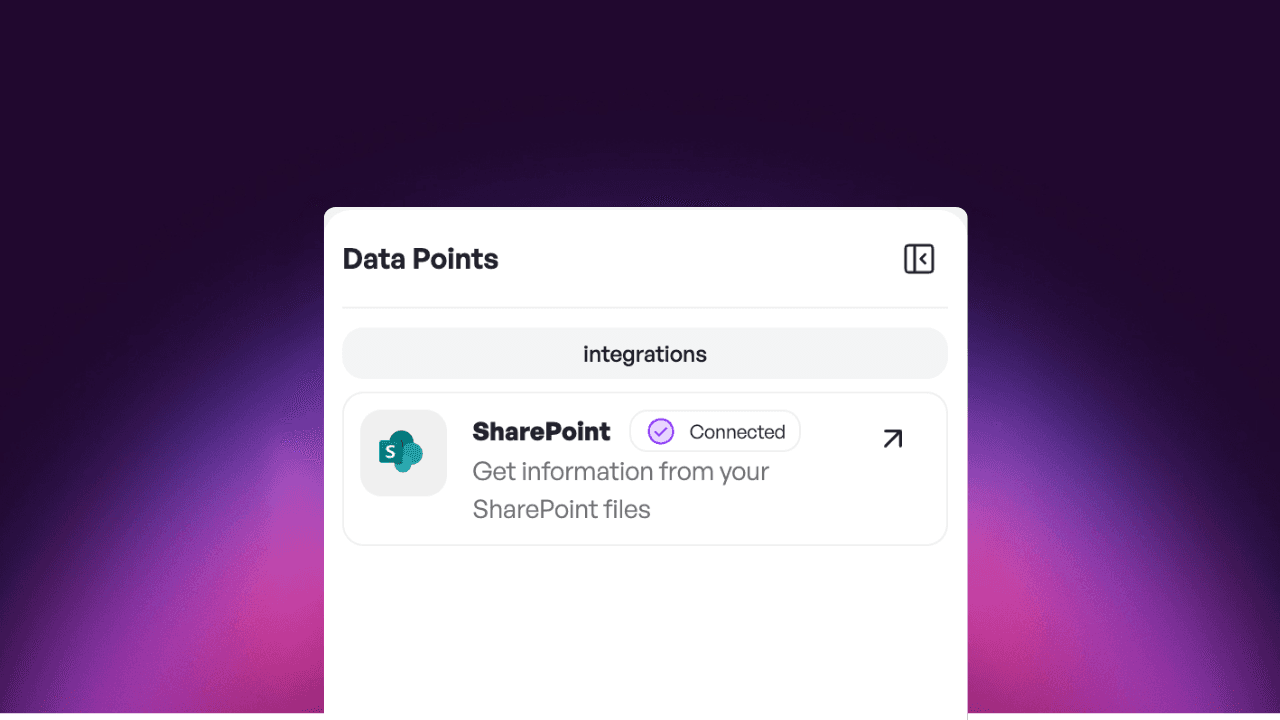
      • SharePoint integration: Connect your SharePoint and sync documents automatically with neuland.ai HUB.
      • Chat control: Stop running AI answers manually at any time once you have the information you need.

      More improvements

      • Optimized user interface for more consistent operation
      • More flexible management of user permissions for administrators
      • More reliable document upload for all common file formats
    3. v1.2.4

      Group management for AI apps

      More control for administrators: define precisely who may access which AI apps.

      New features

      • Folder upload: Upload complete folders from your computer instead of selecting files individually.
      • SharePoint sync: Connect your SharePoint libraries and keep documents in sync automatically.
      • Stop chat: Interrupt or stop running AI answers manually at any time.
      • Multiple super admins: Administrators can now appoint additional super admins and distribute permissions more flexibly.

      New design

      • Consistent dialogs: The pop-ups for “Edit project” and “Invite team member” now appear consistently on the right side.

      Improvements

      • Modernized UI components: An interface updated throughout for a more consistent look.
      • Workflow editor: Elements can now be arranged by drag & drop.

      Bug fixes

      • DOCX uploads now work reliably
      • Files no longer get stuck in “Pending” status
      • MSG files with embedded images are processed correctly
      • Language setting is kept after logout
      • AI app permissions are displayed correctly in the team members view
      • Chat answers now appear reliably (no more endless loading)
    4. v1.2.3

      Web search & smart tools in the chat

      Your AI can now search the internet, create files and work even more smoothly with your

      Web search & smart tools in the chat

      New features

      • Web search in the chat: The AI researches current information directly from the internet and gives you well-founded answers with sources.
      • File downloads: Have answers, reports and tables created as finished documents for download.
      • Azure user groups: Control precisely which teams have access to which AI applications.

      More improvements

      • More stable and faster connection to SharePoint data sources
      • Improved real-time document sync
    5. v1.2.2

      Private project chats

      Protect sensitive project discussions with private chats and sync documents more selectively.

      Private project chats

      New features

      • Private project chats: Hold confidential discussions in protected chats that only selected team members can access.
      • Selective document sync: When connecting to SharePoint, choose exactly which folders and areas to sync.

      More improvements

      • Optimized user management for administrators
      • Reworked sign-in page with current terms of use
    6. v1.2.1

      Introducing Code & Data Analyst

      Let the AI analyze data and create files, and organize knowledge centrally for your team.

      Introducing Code & Data Analyst

      New features

      • Code blocks in the chat: Insert code directly into messages using triple backticks (```). Syntax highlighting and drag-and-drop of files included.
      • Collections: Organize documents in reusable collections and share them with team members within your tenant.
      • AI-generated files: The AI can now create charts, tables and data exports that you can download directly.
      • Guided onboarding: New users are now guided through the platform step by step.

      More improvements

      • Completely reworked design with a more modern look and improved navigation
      • New users can enter their name directly when registering
      • Dynamically growing input field for longer prompts

Ready to start?

From AI strategy to a running platform: we show you the way.

Page footer